Tag: oci
- Written by: ilmarkerm
- Category: Blog entry
- Published: April 11, 2026
I currently have a customer who wishes to move their internal APEX application into a cloud based hosting, with quite tight budget constraints – and at the same time still need to treat it as production service.
After comparing many options, none which were perfect, the option that we are going for is Oracle Autonomous database APEX workload type. It is significantly cheaper than the full blown Autonomous Database, but it does come with its own quite unique challenges that we need to overcome. APEX service limitations are documented here
The main limitation – there is no connectivity via SQL*Net, all interactions must be done over HTTPS. Everything, including development of database application and deployments.
Side-effect of this restriction is also that there is no-way to have a custom URL (vanity URL) for your application that would also support APEX social login feature (OAuth/OpenID). To overcome that limitation in a full Autonomous Database installation, people usually deploy their own ORDS in front of the Oracle cloud database service. This solution is not usable here.
I will write a few blog posts, on how to work within the restrictions of the APEX workload type database and still keep most of the developer comforts.
Connecting to the database
To work with the database schema you are mainly expected to use the built in APEX SQL workspace and Database Actions SQL Developer web. Mostly enough, but I think we all prefer using our own preferred database clients. Also it is not possible to automate tasks and deploys via the web page.
A few years ago Oracle introduced REST JDBC driver that talks to the database over ORDS SQL endpoint, via HTTP protocol. This ORDS endpoint is accessible, so lets try using it.
The REST JDBC driver does come with restrictions, the main one being that the driver is stateless and does not support transactions. You can read about the driver and its restrictions here
Create ORDS enabled schema
Open Autonomous AI Database and go to Tool configuration. There you see Web access (ORDS) and open its Public access URL. Open SQL Developer web and log in as ADMIN.
Open Administration > Database users and enable schema you want to log in as REST enabled. And copy the REST URL for this schema, minus the last _sdw/ part.
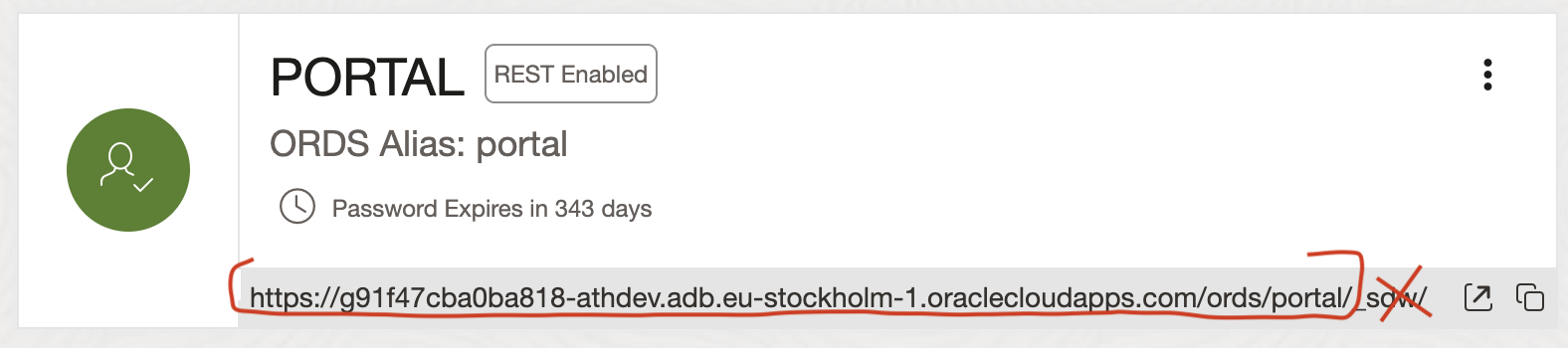
SQLcl
It is possible to connect to the ORDS SQL endpoint using SQLcl, Jeff Smith blogged about it here. Although not all SQLcl functions are available. For example Liquibase and connection manager are not available.
Here I’m using SQLcl 26.1.
- Start SQLcl with /nolog flag
- CONNECT schemaname@RESTUrl
- Or CONNECT schemaname/password@RESTUrl
ilmarkerm@Ilmars-iMac bin % ./sql /nolog

SQLcl: Release 26.1 Production on Sat Apr 11 09:21:40 2026

Copyright (c) 1982, 2026, Oracle.  All rights reserved.

SQL> connect portal@https://g91f47cba0ba818-athdev.adb.eu-stockholm-1.oraclecloudapps.com/ords/portal/
Password? (**********?) **********************
Connected.

SQL> select user, sys_context('userenv','instance_name');

USER      SYS_CONTEXT('USERENV','INSTANCE_NAME')
_________ _________________________________________
PORTAL    fcehldyf3
I can execute usual SQL commands.
SQL> create table t (id number);

Table T created.

SQL> insert into t (id) values (1);

1 row inserted.

SQL> select * from t;

   ID
_____
    1

SQL> begin
  2    for i in 1..100000 loop
  3      insert into t (id) values (i);
  4    end loop;
  5  end;
  6* /

PL/SQL procedure successfully completed.

SQL> select count(*) from t;

   COUNT(*)
___________
     100001

SQL> truncate table t;

Table T truncated.
But the REST driver is stateless, so no transactions (between different calls – inside the same call they work).
SQL> insert into t (id) values (2000000002);

1 row inserted.

SQL> rollback;

Rollback complete.

SQL> select * from t;

           ID
_____________
   2000000002

SQL> begin
  2  insert into t (id) values (30000003);
  3  rollback;
  4  end;
  5* /

PL/SQL procedure successfully completed.

SQL> select * from t;

           ID
_____________
   2000000002
You cannot use SQLcl connection manager for saving the connections.
SQL> conn -save portaldev portal@https://g91f47cba0ba818-athdev.adb.eu-stockholm-1.oraclecloudapps.com/ords/portal/
Connections of type OREST are not supported for saving
Warning: You are no longer connected to ORACLE.
Also built in Liquibase commands give a NullPointer.
SQL> lb generate-changelog
Null Pointer please log a bug.
liquibase.exception.CommandExecutionException: Cannot invoke "String.toUpperCase()" because the return value of "java.sql.DatabaseMetaData.getSQLKeywords()" is null
GUI
I haven’t been successful at connecting DBeaver nor SQL Developer using the Oracle REST driver. DBeaver just gives a lot of internal JDBC errors even if I strip it down to bare minimum of supported features.
java.lang.NullPointerException: Cannot invoke "java.sql.Statement.execute(String)" because the return value of "org.jkiss.dbeaver.model.impl.jdbc.exec.JDBCStatementImpl.getOriginal()" is nullI’ll leave it like that.
- Written by: ilmarkerm
- Category: Blog entry
- Published: October 2, 2024
In the previous post I looked how to create Oracle database home in OCI, using custom patches. Here I create a Oracle Base database on top of that custom home.
I was struggling for days with this, mostly because I first wanted to create database on LVM storage, but after running for many many hours, the provisioning got stuck always at 42%, without any error messages. Finally, with tons of experimentation, I found out that if I replace LVM with ASM storage, it all just works.
# List all availability domainsdata "oci_identity_availability_domains" "ads" {
    compartment_id = oci_identity_compartment.compartment.id
}

# Create the Oracle Base database
resource "oci_database_db_system" "test23ai" {
    # Waits until DB system is provisioned
    # It can take a few hours
    availability_domain = data.oci_identity_availability_domains.ads.availability_domains[0].name
    compartment_id = oci_identity_compartment.compartment.id
    db_home {
        database {
            admin_password = "correct#HorseBatt5eryS1-_ple"
            character_set = "AL32UTF8"
            #database_software_image_id = oci_database_database_software_image.db_23051.id
            db_name = "test23ai"
            pdb_name = "PDB1"
            db_backup_config {
                auto_backup_enabled = false
            }
        }
        db_version = oci_database_database_software_image.db_23051.patch_set
        database_software_image_id = oci_database_database_software_image.db_23051.id
    }
    hostname = "test23ai1"
    shape = "VM.Standard.E5.Flex"
    ssh_public_keys = ["ssh-rsa AAAAB3NzaC1yc2EAAA paste your own ssh public key here"]
    subnet_id = oci_core_subnet.subnet.id

    cpu_core_count = 2
    data_storage_size_in_gb = 256
    database_edition = "ENTERPRISE_EDITION"
    db_system_options {
        storage_management = "ASM" # LVM did not work for me, provisioning stuck at 42% for many many hours until it times out
    }
    display_name = "Test 23ai"
    domain = "dev.se1"
    #fault_domains = var.db_system_fault_domains
    license_model = "LICENSE_INCLUDED"
    node_count = 1
    # Network Security Groups
    #nsg_ids = var.db_system_nsg_ids
    source = "NONE"
    storage_volume_performance_mode = "BALANCED"
    time_zone = "UTC"
}
And to see the connection options, they are visible from terraform state. Here we see database connection information, donnection strings in different formats are visible – so your terraform code could now take these values and store it in some service discovery/parameter store.
ilmar_kerm@codeeditor:oci-terraform-example (eu-stockholm-1)$ terraform state show oci_database_db_system.test23ai

# oci_database_db_system.test23ai:
resource "oci_database_db_system" "test23ai" {
    availability_domain             = "AfjF:EU-STOCKHOLM-1-AD-1"
    compartment_id                  = "ocid1.compartment.oc1..aaaa"
    cpu_core_count                  = 2
    data_storage_percentage         = 80
    data_storage_size_in_gb         = 256
    database_edition                = "ENTERPRISE_EDITION"
    defined_tags                    = {
        "Oracle-Tags.CreatedBy" = "default/ilmar.kerm@gmail.com"
        "Oracle-Tags.CreatedOn" = "2024-10-02T14:57:03.606Z"
    }
    disk_redundancy                 = "HIGH"
    display_name                    = "Test 23ai"
    domain                          = "dev.se1"
    fault_domains                   = [
        "FAULT-DOMAIN-2",
    ]
    freeform_tags                   = {}
    hostname                        = "test23ai1"
    id                              = "ocid1.dbsystem.oc1.eu-stockholm-1.anqxeljr4ebxpbqanr42p2zebku5hdk5nci2"
    iorm_config_cache               = []
    license_model                   = "LICENSE_INCLUDED"
    listener_port                   = 1521
    maintenance_window              = []
    memory_size_in_gbs              = 32
    node_count                      = 1
    reco_storage_size_in_gb         = 256
    scan_ip_ids                     = []
    shape                           = "VM.Standard.E5.Flex"
    source                          = "NONE"
    ssh_public_keys                 = [
        "ssh-rsa AAAAB3NzaC1yc2EAAAADAQABAAABgQCvccb2GOc+VU6V0lw367a5sgKqn0epAok9vCVboK6WvQid6byo7hkWUSixIuB6ZPGG89n3ig4r my ssh public key",
    ]
    state                           = "AVAILABLE"
    storage_volume_performance_mode = "BALANCED"
    subnet_id                       = "ocid1.subnet.oc1.eu-stockholm-1.aaaaaaaal6ru"
    time_created                    = "2024-10-02 14:57:04.037 +0000 UTC"
    time_zone                       = "UTC"
    version                         = "23.5.0.24.07"
    vip_ids                         = []

    data_collection_options {
        is_diagnostics_events_enabled = false
        is_health_monitoring_enabled  = false
        is_incident_logs_enabled      = false
    }

    db_home {
        create_async               = false
        database_software_image_id = "ocid1.databasesoftwareimage.oc1.eu-stockholm-1.anqxeljr4ebxpbqa3h6dawz"
        db_home_location           = "/u01/app/oracle/product/23.0.0.0/dbhome_1"
        db_version                 = "23.5.0.24.07"
        defined_tags               = {}
        display_name               = "dbhome20241002145704"
        freeform_tags              = {}
        id                         = "ocid1.dbhome.oc1.eu-stockholm-1.anqxeljrb3hetziaby6hwudav"
        state                      = "AVAILABLE"
        time_created               = "2024-10-02 14:57:04.042 +0000 UTC"

        database {
            admin_password             = (sensitive value)
            character_set              = "AL32UTF8"
            connection_strings         = [
                {
                    all_connection_strings = {
                        "cdbDefault"   = "test23ai1.dev.se1:1521/test23ai_rf6_arn.dev.se1"
                        "cdbIpDefault" = "(DESCRIPTION=(CONNECT_TIMEOUT=5)(TRANSPORT_CONNECT_TIMEOUT=3)(RETRY_COUNT=3)(ADDRESS_LIST=(LOAD_BALANCE=on)(ADDRESS=(PROTOCOL=TCP)(HOST=10.1.2.80)(PORT=1521)))(CONNECT_DATA=(SERVICE_NAME=test23ai_rf6_arn.dev.se1)))"
                    }
                    cdb_default            = "test23ai1.dev.se1:1521/test23ai_rf6_arn.dev.se1"
                    cdb_ip_default         = "(DESCRIPTION=(CONNECT_TIMEOUT=5)(TRANSPORT_CONNECT_TIMEOUT=3)(RETRY_COUNT=3)(ADDRESS_LIST=(LOAD_BALANCE=on)(ADDRESS=(PROTOCOL=TCP)(HOST=10.1.2.80)(PORT=1521)))(CONNECT_DATA=(SERVICE_NAME=test23ai_rf6_arn.dev.se1)))"
                },
            ]
            database_software_image_id = "ocid1.databasesoftwareimage.oc1.eu-stockholm-1.anqxeljr4ebxpbqa3h6"
            db_name                    = "test23ai"
            db_unique_name             = "test23ai_rf6_arn"
            db_workload                = "OLTP"
            defined_tags               = {
                "Oracle-Tags.CreatedBy" = "default/ilmar.kerm@gmail.com"
                "Oracle-Tags.CreatedOn" = "2024-10-02T14:57:03.740Z"
            }
            freeform_tags              = {}
            id                         = "ocid1.database.oc1.eu-stockholm-1.anqxeljr4ebxpbqac3v4lrr"
            ncharacter_set             = "AL16UTF16"
            pdb_name                   = "PDB1"
            pluggable_databases        = []
            state                      = "AVAILABLE"
            time_created               = "2024-10-02 14:57:04.043 +0000 UTC"

            db_backup_config {
                auto_backup_enabled       = false
                auto_full_backup_day      = "SUNDAY"
                recovery_window_in_days   = 0
                run_immediate_full_backup = false
            }
        }
    }

    db_system_options {
        storage_management = "ASM"
    }
}- Written by: ilmarkerm
- Category: Blog entry
- Published: September 29, 2024
I’ll continue exploring using OCI services with Terraform. Now it is time to start looking into databases. High Oracle PM-s have been lobbying for a database image creation service, where you just supply patch numbers and Oracle will return you the fully built database home. I see that this service is now available in the cloud (for cloud databases only).
I’ll try it out, using terraform.
resource "oci_database_database_software_image" "db_23051" {
    # NB! Waits until image is provisioned
    # This took 10m47s to provision
    compartment_id = oci_identity_compartment.compartment.id
    display_name = "23-db-23051"

    image_shape_family = "VM_BM_SHAPE" # For use in Database Base service
    # oci db version list
    # NB! 23.0.0.0 seems to be behind on patches, 23.0.0.0.0 seems to be current
    database_version = "23.0.0.0.0"
    image_type = "DATABASE_IMAGE"
    # Can't find how to query that list - but the format seems quite self-explanatory
    # Exadata Cloud Service Software Versions (Doc ID 2333222.1)
    patch_set = "23.5.0.24.07"
}
I had hard time finding out the allowed values for parameter patch_set, but they seem to be described in Doc ID 2333222.1 (and what the contents are).
Examining the state of the created resource
ilmar_kerm@codeeditor:oci-terraform-example (eu-stockholm-1)$ terraform state show oci_database_database_software_image.db_23051

# oci_database_database_software_image.db_23051:
resource "oci_database_database_software_image" "db_23051" {
    compartment_id                           = "ocid1.compartment.oc1..aaaaaaaasbzzr7i54kpv6oc5s7i23isiij6n2tyentd5udc34ptzagovrgqa"
    database_software_image_included_patches = [
        "35221462",
        "36741532",
        "36744688",
    ]
    database_software_image_one_off_patches  = [
        "35221462",
        "36741532",
        "36744688",
    ]
    database_version                         = "23.0.0.0.0"
    defined_tags                             = {
        "Oracle-Tags.CreatedBy" = "default/ilmar.kerm@gmail.com"
        "Oracle-Tags.CreatedOn" = "2024-09-29T12:36:02.119Z"
    }
    display_name                             = "23-db-23051"
    freeform_tags                            = {}
    id                                       = "ocid1.databasesoftwareimage.oc1.eu-stockholm-1.anqxeljr4ebxpbqadhgioquzxv6qtrui72e3sn3c7iwxcljncmdq7fx5jdbq"
    image_shape_family                       = "VM_BM_SHAPE"
    image_type                               = "DATABASE_IMAGE"
    is_upgrade_supported                     = false
    patch_set                                = "23.5.0.24.07"
    state                                    = "AVAILABLE"
    time_created                             = "2024-09-29 12:36:02.123 +0000 UTC"
}
One thing I notice here (verified with testing), that the parameter database_software_image_one_off_patches gets pre-populated with included patches after the image is created – so you have to include the included patches also the the parameter value.
With 19c version process is similar
resource "oci_database_database_software_image" "db_19241" {
    # NB! Waits until image is provisioned
    # This took 16m4s to provision
    compartment_id = oci_identity_compartment.compartment.id
    display_name = "19-db-19241"

    image_shape_family = "VM_BM_SHAPE" # For use in Database Base service
    # oci db version list
    database_version = "19.0.0.0"
    image_type = "DATABASE_IMAGE"
    patch_set = "19.24.0.0"
}
I did try to apply MRP on top of it, but maybe the cloud patch numbers are different, since the usual MRP patch number did not apply on top of it.
In the next post I’ll try to spin up an actual database using the image.
- Written by: ilmarkerm
- Category: Blog entry
- Published: April 14, 2024
Here I’m exploring how to control the basic network level resource security accesses. In AWS there is a concept called Security Groups. In OCI Oracle Cloud the similar concept is called Network Security Groups, also there is a little bit less powerful concept called Security Lists. A good imprevement with Network Security Groups over Security Lists is that in rules you can refer to other NSGs, not only CIDR.
Below I create two NSG – one for databases and one for application servers, and allow unrestricted outgoing traffc from them both.
# security.tf

# Rules for appservers

resource "oci_core_network_security_group" "appserver" {
    compartment_id = oci_identity_compartment.compartment.id
    vcn_id = oci_core_vcn.main.id
    display_name = "Application servers"
}

resource "oci_core_network_security_group_security_rule" "appserver_egress" {
    network_security_group_id = oci_core_network_security_group.appserver.id
    direction = "EGRESS"
    protocol = "all"
    description = "Allow all Egress traffic"
    destination = "0.0.0.0/0"
    destination_type = "CIDR_BLOCK"
}

# Rules for databases

resource "oci_core_network_security_group" "db" {
    compartment_id = oci_identity_compartment.compartment.id
    vcn_id = oci_core_vcn.main.id
    display_name = "Databases"
}

resource "oci_core_network_security_group_security_rule" "db_egress" {
    network_security_group_id = oci_core_network_security_group.db.id
    direction = "EGRESS"
    protocol = "all"
    description = "Allow all Egress traffic"
    destination = "0.0.0.0/0"
    destination_type = "CIDR_BLOCK"
}
Some rule examples to allow traffic from appservers towards databases. Here referring to the appserver NSG as source – not a CIDR.
# This rule allows port 1521/tcp to be accessed from NSG "appserver" created earlier
resource "oci_core_network_security_group_security_rule" "db_appserver_oracle" {
    network_security_group_id = oci_core_network_security_group.db.id
    direction = "INGRESS"
    protocol = "6" # TCP
    description = "Allow ingress from application servers to 1521/tcp"
    source_type = "NETWORK_SECURITY_GROUP"
    source = oci_core_network_security_group.appserver.id
    tcp_options {
        destination_port_range {
            min = 1521
            max = 1521
        }
    }
}

# This rule allows port 5432/tcp to be accessed from NSG "appserver" created earlier
resource "oci_core_network_security_group_security_rule" "db_appserver_postgres" {
    network_security_group_id = oci_core_network_security_group.db.id
    direction = "INGRESS"
    protocol = "6" # TCP
    description = "Allow ingress from application servers to 5432/tcp"
    source_type = "NETWORK_SECURITY_GROUP"
    source = oci_core_network_security_group.appserver.id
    tcp_options {
        destination_port_range {
            min = 5432
            max = 5432
        }
    }
}
And one example rule for appserver group, here I just want to show that the source NSG can refer to itself – so the port is open only to resources placed in the same NSG.
# This rule allows port 80/tcp to be accessed from the NSG itself
# Example use - the application is running unencrypted HTTP and is expected to have a loadbalancer in front, that does the encryption. In this case loadbalancer could be put to the same NSG.
# Or if the different application servers need to have a backbone communication port between each other - like cluster interconnect
resource "oci_core_network_security_group_security_rule" "appserver_http" {
    network_security_group_id = oci_core_network_security_group.appserver.id
    direction = "INGRESS"
    protocol = "6" # TCP
    description = "Allow access port port 80/tcp only from current NSG (self)"
    source_type = "NETWORK_SECURITY_GROUP"
    source = oci_core_network_security_group.appserver.id
    tcp_options {
        destination_port_range {
            min = 80
            max = 80
        }
    }
}
Now, network security groups need to be attached to the resources they are intended to protect. NSG-s are attached to the virtual network adapers VNICs.
To attach NSG to my previously created compute instance, I have to go back and edit the compute instance declaration to attach a NSG to the primary VNIC of that instance.
# compute.tf

resource "oci_core_instance" "arm_instance" {
    compartment_id = oci_identity_compartment.compartment.id
    # oci iam availability-domain list
    availability_domain = "MpAX:EU-STOCKHOLM-1-AD-1"
    # oci compute shape list --compartment-id
    shape = "VM.Standard.A1.Flex" # ARM based shape
    shape_config {
        # How many CPUs and memory
        ocpus = 2
        memory_in_gbs = 4
    }
    display_name = "test-arm-1"
    source_details {
        # The source operating system image
        # oci compute image list --all --output table --compartment-id
        source_id = data.oci_core_images.oel.images[0].id
        source_type = "image"
    }
    create_vnic_details {
        # Network details
        subnet_id = oci_core_subnet.subnet.id
        assign_public_ip = true
        # attaching Network Security Groups - NSGs
        nsg_ids = [oci_core_network_security_group.appserver.id]
    }
    # CloudInit metadata - including my public SSH key
    metadata = {
        ssh_authorized_keys = "ssh-rsa AAAAB3NzaC1yc2EAAAADAQABAAABgQCZ4bqPK+Mwiy+HLabqJxCMcQ/hY7IPx/oEQZWZq7krJxkLLUI6lkw44XRCutgww1q91yTdsSUNDZ9jFz9LihGTEIu7CGKkzmoGtAWHwq2W38GuA5Fqr0r2vPH1qwkTiuN+VmeKJ+qzOfm9Lh1zjD5e4XndjxiaOrw0wI19zpWlUnEqTTjgs7jz9X7JrHRaimzS3PEF5GGrT6oy6gWoKiWSjrQA2VGWI0yNQpUBFTYWsKSHtR+oJHf2rM3LLyzKcEXnlUUJrjDqNsbbcCN26vIdCGIQTvSjyLj6SY+wYWJEHCgPSbBRUcCEcwp+bATDQNm9L4tI7ZON5ZiJstL/sqIBBXmqruh7nSkWAYQK/H6PUTMQrUU5iK8fSWgS+CB8CiaA8zos9mdMfs1+9UKz0vMDV7PFsb7euunS+DiS5iyz6dAz/uFexDbQXPCbx9Vs7TbBW2iPtYc6SNMqFJD3E7sb1SIHhcpUvdLdctLKfnl6cvTz2o2VfHQLod+mtOq845s= ilmars_public_key"
    }
}- Written by: ilmarkerm
- Category: Blog entry
- Published: April 7, 2024
Continusing to build Oracle Cloud Infrastructure with Terraform. Today moving on to compute instances.
But first some networking, the VCN I created earlier did not have access to the internet. Lets fix it now. The code below will add an Internet Gateway and modify the default route table to send out the network traffic via the Internet Gateway.
# network.tf

resource "oci_core_internet_gateway" "internet_gateway" {
    compartment_id = oci_identity_compartment.compartment.id
    vcn_id = oci_core_vcn.main.id
    # Internet Gateway cannot be associated with Route Table here, otherwise adding a route table rule will error with - Rules in the route table must use private IP as a target.
    #route_table_id = oci_core_vcn.main.default_route_table_id
}

resource "oci_core_default_route_table" "default_route_table" {
    manage_default_resource_id = oci_core_vcn.main.default_route_table_id
    compartment_id = oci_identity_compartment.compartment.id
    display_name = "Default Route Table for VCN"
    route_rules {
        network_entity_id = oci_core_internet_gateway.internet_gateway.id
        destination = "0.0.0.0/0"
        destination_type = "CIDR_BLOCK"
    }
}
Moving on to the compute instance itself. First question is – what operating system should it run – what is the source image. There is a data source for this. Here I select the latest Oracle Linux 9 image for ARM.
data "oci_core_images" "oel" {
    compartment_id = oci_identity_compartment.compartment.id
    operating_system = "Oracle Linux"
    operating_system_version = "9"
    shape = "VM.Standard.A1.Flex"
    state = "AVAILABLE"
    sort_by = "TIMECREATED"
    sort_order = "DESC"
}

# Output the list for debugging
output "images" {
    value = data.oci_core_images.oel
}
We are now ready to create the compute instance itself. In the metadata I provide my SSH public key, so I could SSH into the server.
resource "oci_core_instance" "arm_instance" {
    compartment_id = oci_identity_compartment.compartment.id
    # oci iam availability-domain list
    availability_domain = "MpAX:EU-STOCKHOLM-1-AD-1"
    # oci compute shape list --compartment-id
    shape = "VM.Standard.A1.Flex" # ARM based shape
    shape_config {
        # How many CPUs and memory
        ocpus = 2
        memory_in_gbs = 4
    }
    display_name = "test-arm-1"
    source_details {
        # The source operating system image
        # oci compute image list --all --output table --compartment-id
        source_id = data.oci_core_images.oel.images[0].id
        source_type = "image"
    }
    create_vnic_details {
        # Network details
        subnet_id = oci_core_subnet.subnet.id
        assign_public_ip = true
    }
    # CloudInit metadata - including my public SSH key
    metadata = {
        ssh_authorized_keys = "ssh-rsa AAAAB3NzaC1yc2EAAAADAQABAAABgQCZ4bqPK+Mwiy+HLabqJxCMcQ/hY7IPx/oEQZWZq7krJxkLLUI6lkw44XRCutgww1q91yTdsSUNDZ9jFz9LihGTEIu7CGKkzmoGtAWHwq2W38GuA5Fqr0r2vPH1qwkTiuN+VmeKJ+qzOfm9Lh1zjD5e4XndjxiaOrw0wI19zpWlUnEqTTjgs7jz9X7JrHRaimzS3PEF5GGrT6oy6gWoKiWSjrQA2VGWI0yNQpUBFTYWsKSHtR+oJHf2rM3LLyzKcEXnlUUJrjDqNsbbcCN26vIdCGIQTvSjyLj6SY+wYWJEHCgPSbBRUcCEcwp+bATDQNm9L4tI7ZON5ZiJstL/sqIBBXmqruh7nSkWAYQK/H6PUTMQrUU5iK8fSWgS+CB8CiaA8zos9mdMfs1+9UKz0vMDV7PFsb7euunS+DiS5iyz6dAz/uFexDbQXPCbx9Vs7TbBW2iPtYc6SNMqFJD3E7sb1SIHhcpUvdLdctLKfnl6cvTz2o2VfHQLod+mtOq845s= ilmars_public_key"
    }
}
And attach the block storage volumes I created in the previous post. Here I create attachments as paravirtualised, meaning the volumes appear on server as sd* devices, but also iSCSI is possible.
resource "oci_core_volume_attachment" "test_volume_attachment" {
    attachment_type = "paravirtualized"
    instance_id = oci_core_instance.arm_instance.id
    volume_id = oci_core_volume.test_volume.id

    # Interesting options, could be useful in some cases
    is_pv_encryption_in_transit_enabled = false
    is_read_only = false
    is_shareable = false
}

resource "oci_core_volume_attachment" "silver_test_volume_attachment" {
    # This is to enforce device attachment ordering
    depends_on = [oci_core_volume_attachment.test_volume_attachment]

    attachment_type = "paravirtualized"
    instance_id = oci_core_instance.arm_instance.id
    volume_id = oci_core_volume.silver_test_volume.id

    # Interesting options, could be useful in some cases
    is_pv_encryption_in_transit_enabled = false
    is_read_only = true
    is_shareable = false
}
Looks like OCI support some interesting options for attaching volumes, like encryption, read only and shareable. I can see them being useful in the future. If I log into the created server, the attached devices are created as sdb and sdc – where sdc was instructed to be read only. And indeed it is.
[root@test-arm-1 ~]# lsblk
NAME               MAJ:MIN RM  SIZE RO TYPE MOUNTPOINTS
sda                  8:0    0 46.6G  0 disk
├─sda1               8:1    0  100M  0 part /boot/efi
├─sda2               8:2    0    2G  0 part /boot
└─sda3               8:3    0 44.5G  0 part
  ├─ocivolume-root 252:0    0 29.5G  0 lvm  /
  └─ocivolume-oled 252:1    0   15G  0 lvm  /var/oled
sdb                  8:16   0   50G  0 disk
sdc                  8:32   0   50G  1 disk

[root@test-arm-1 ~]# dd if=/dev/zero of=/dev/sdb bs=1M count=10
10+0 records in
10+0 records out
10485760 bytes (10 MB, 10 MiB) copied, 0.0453839 s, 231 MB/s

[root@test-arm-1 ~]# dd if=/dev/zero of=/dev/sdc bs=1M count=10
dd: failed to open '/dev/sdc': Read-only file system